
If you track invoices, expenses or prices in more than one currency, typing exchange rates into a spreadsheet by hand gets old fast, and the numbers are stale by the next morning. This tutorial connects Google Sheets to the CurrencyFreaks exchange rate API with a short Apps Script, so two custom functions pull live and historical rates straight into your cells.
You'll set up the sheet layout, paste in the script, call the functions from any cell, and add a trigger so rates refresh on their own. The free plan's 1,000 calls a month covers an hourly refresh all month.
Why Do You Integrate a Free Currency API with Google Sheets?
Avoid manually updating spreadsheets repeatedly by integrating a free currency API with Google Sheets. Save time and reduce errors. This innovation is useful for monetizing a business or traveling expenses.
Thanks to technology, staying updated with current market rates has never been easier. Dependable and precise information ensures your financial details are current. Market price fluctuations update automatically in the backend, with no input from you.
Free currency API integration with Google Sheets allows different currencies in one sheet. You can see expenses clearly in various currencies. It makes data-driven decisions easier.
What Are the Most Effective Methods for Integrating Currency Conversions Within Google Sheets?
Use Google Sheets Functions
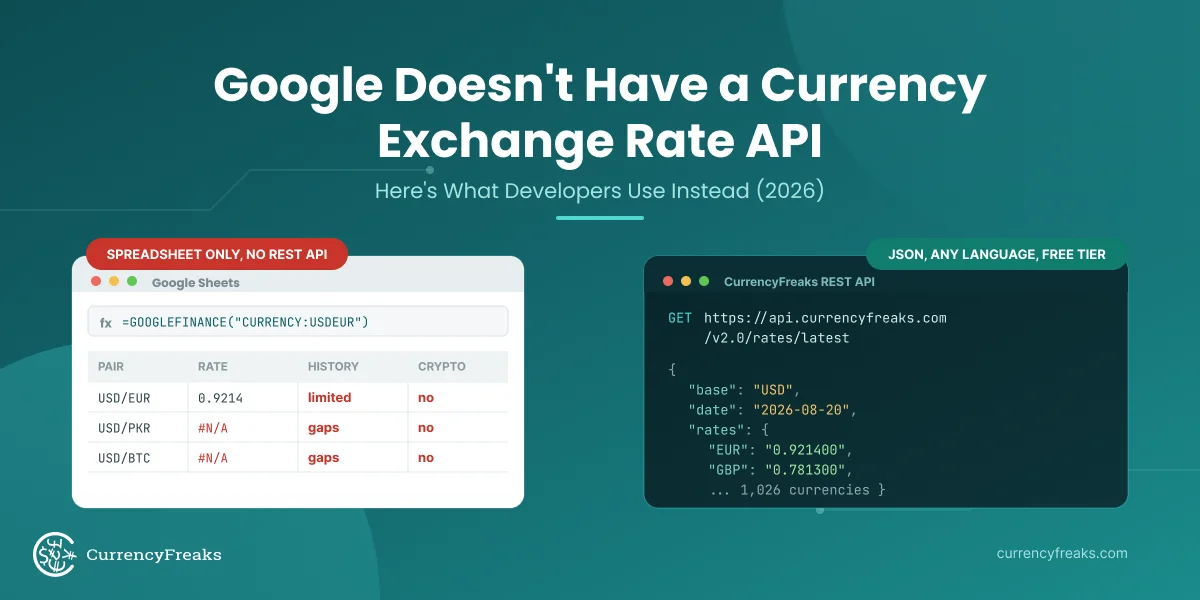
Start with built-in tools like GOOGLEFINANCE. For example, =GOOGLEFINANCE("CURRENCY:USDEUR") returns the USD to EUR rate. It's convenient for basic use, but it has real limitations in production:
- No crypto or metals - only traditional fiat currency pairs are supported.
- No historical data control - you cannot query rates for a specific past date; GOOGLEFINANCE returns whatever it has cached.
- Unreliable for production - the function is undocumented by Google and can return errors or stale data without warning.
- No JSON/XML output - rates are only available as spreadsheet cell values, not suitable for programmatic use.
- Rate limits apply - heavy use across many cells can trigger throttling.
For casual personal use, GOOGLEFINANCE is fine. For anything business-critical - multi-currency invoicing, financial reporting, or any use case where an incorrect rate costs money - you need a dedicated API like CurrencyFreaks.
Use Free Currency APIs, like CurrencyFreaks
Another strategy is using reliable APIs for current rates. CurrencyFreaks is useful here. Google Apps Script lets you link Sheets to the API easily. This provides automatic, current foreign exchange updates. It ensures accurate, timely information for financial functions, budgeting, or international purchases.
Try Add-ons and Extensions
Add-ons like "API Connector" make it easier to connect APIs with simple coding. No heavy coding is needed. A few clicks, and your data syncs. It's a great way to insert live currency rates into your sheets.
Using these strategies, especially APIs like CurrencyFreaks, boosts speed, accuracy, and efficiency in currency conversions.
Why GOOGLEFINANCE Falls Short for Production Use
GOOGLEFINANCE is fine for a quick personal lookup, but it updates on a delay, has no documented data source or SLA, and skips crypto, metals, and most emerging-market currencies - real problems for a spreadsheet shared with a team or used in reporting. For the full case against GOOGLEFINANCE and which APIs developers use instead, see our Google currency API alternative guide.
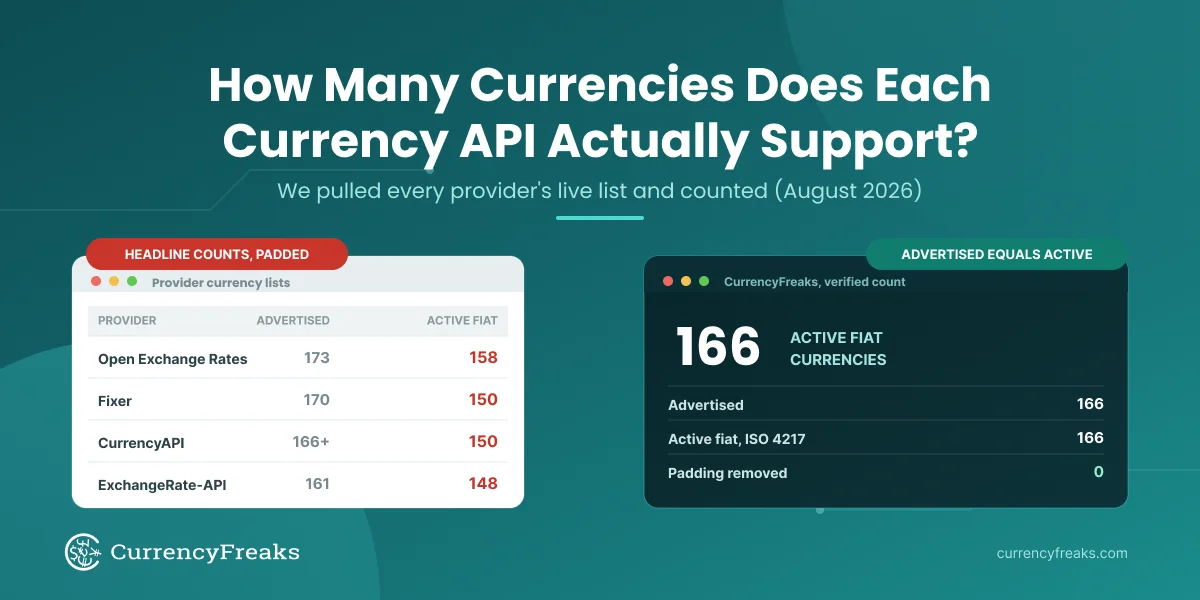
The CurrencyFreaks free plan gives you 1,000 API calls a month with SSL and real-time rates - enough to refresh a Google Sheet automatically every hour, all month, without hitting the limit.
Just need a quick formula rather than a full integration? Our GOOGLEFINANCE currency conversion formula guide covers the formula syntax, historical rates, and time series charts. The rest of this tutorial is the developer route.
How Do You Integrate the CurrencyFreaks Free Currency API with Google Sheets?
Step 1: Set Up Your Google Sheet Layout
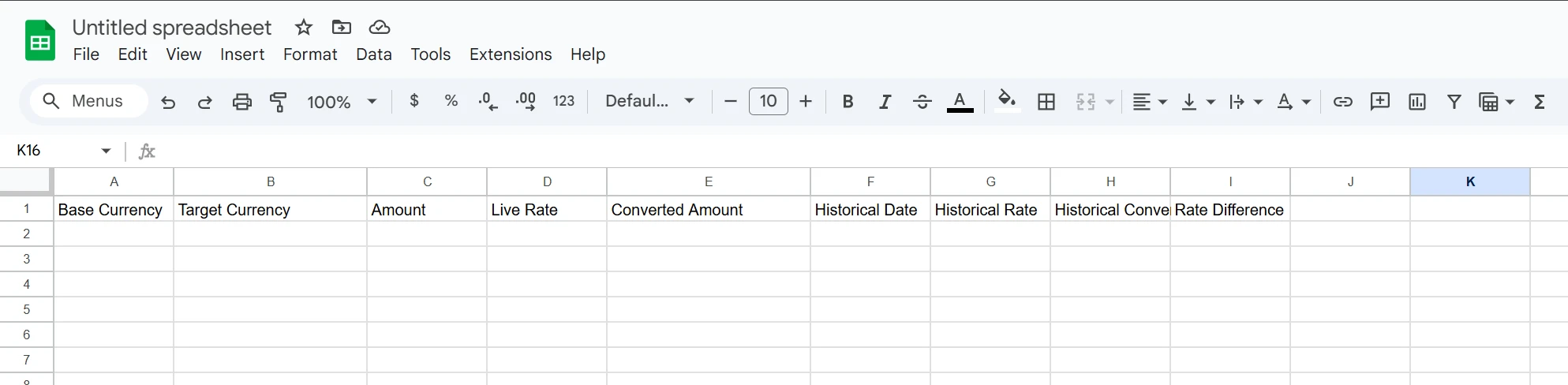
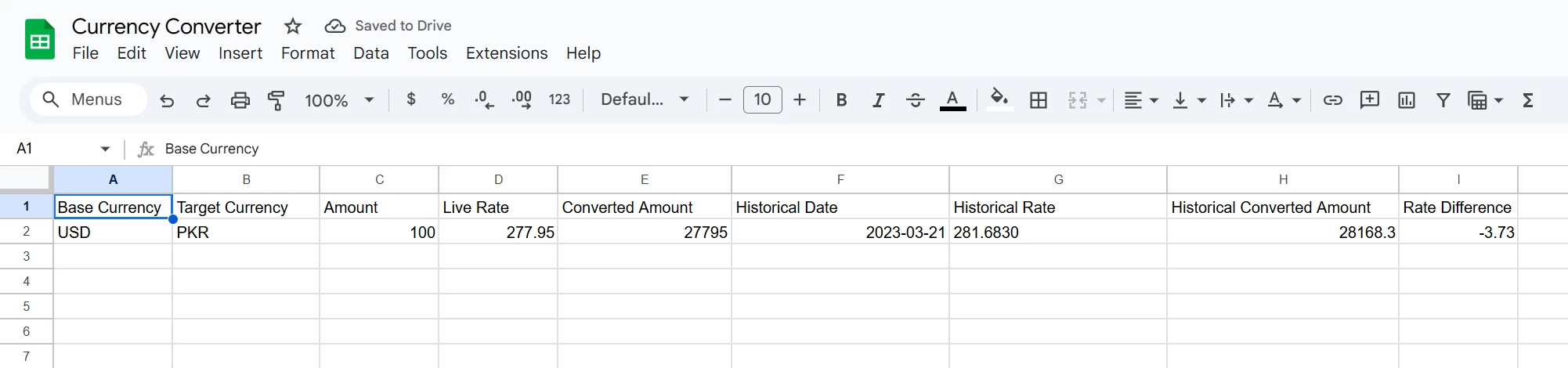
Create a Google Sheet and set up the following headers in row 1:
-
Base Currency (Cell A1)
-
Target Currency (Cell B1)
-
Amount (Cell C1)
-
Live Rate (Cell D1)
-
Converted Amount (Cell E1)
-
Historical Date (Cell F1)
-
Historical Rate (Cell G1)
-
Historical Converted Amount (Cell H1)
-
Rate Difference (Cell I1)
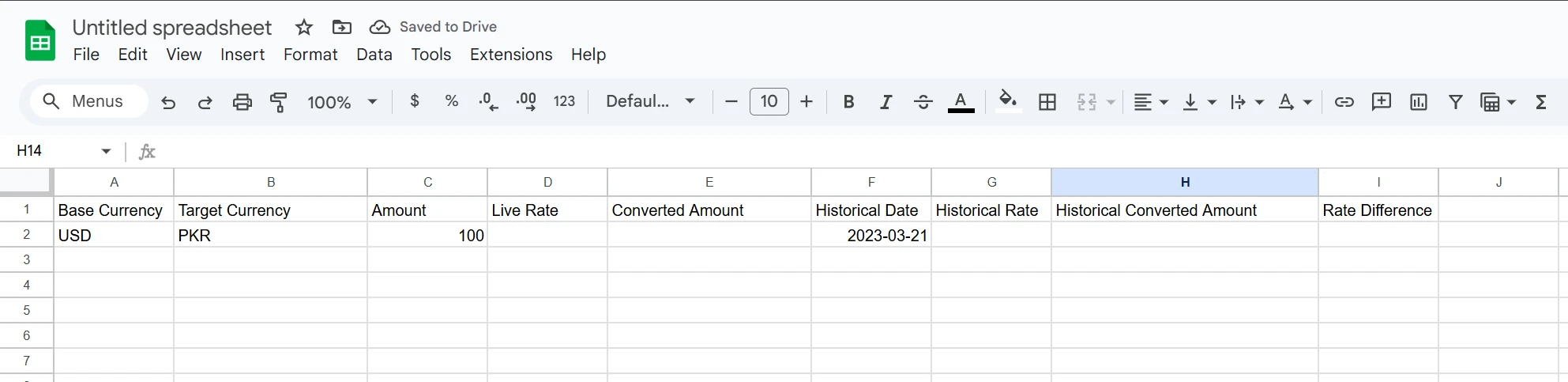
Provide User Inputs:
-
Cell A2: Base currency (e.g., USD)
-
Cell B2: Target currency (e.g., EUR)
-
Cell C2: Amount to convert (e.g., 100)
-
Cell F2: Historical date in YYYY-MM-DD format (e.g., 2023-01-01)
Step 2: Obtain Your CurrencyFreaks API Key
Go to CurrencyFreaks and create an account.
Copy the API key from your account dashboard.
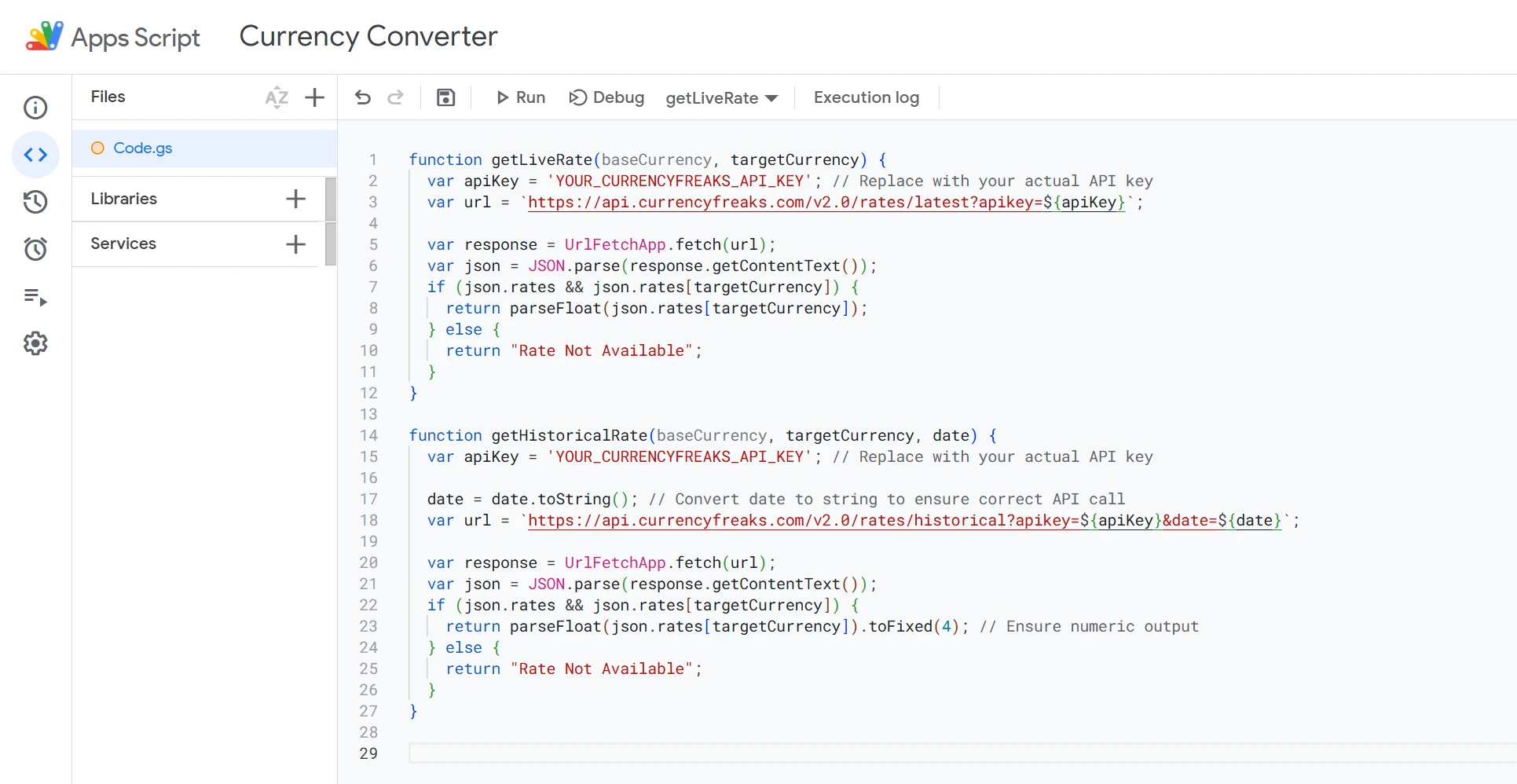
Step 3: Add Google Apps Script for API Integration
Open the Script Editor:
In your Google Sheets file, navigate to Extensions > Apps Script.

Add the Following Scripts:
Script for Fetching Live Exchange Rates:
function getLiveRate(baseCurrency, targetCurrency) {

  var apiKey = 'YOUR_CURRENCYFREAKS_API_KEY'; // Replace with your actual API key

  var url = `https://api.currencyfreaks.com/v2.0/rates/latest?apikey=${apiKey}&base=${baseCurrency}`;

  var response = UrlFetchApp.fetch(url);

  var json = JSON.parse(response.getContentText());

  if (json.rates && json.rates[targetCurrency]) {

    return parseFloat(json.rates[targetCurrency]);

  } else {

    return "Rate Not Available";

  }

}
Script for Fetching Historical Exchange Rates:
function getHistoricalRate(baseCurrency, targetCurrency, date) {

  var apiKey = 'YOUR_CURRENCYFREAKS_API_KEY'; // Replace with your actual API key

  var url = `https://api.currencyfreaks.com/v2.0/rates/historical?apikey=${apiKey}&date=${date}&base=${baseCurrency}`;

  var response = UrlFetchApp.fetch(url);

  var json = JSON.parse(response.getContentText());

  if (json.rates && json.rates[targetCurrency]) {

    return parseFloat(json.rates[targetCurrency]);

  } else {

    return "Rate Not Available";

  }

}
Save the script after adding these functions (click the disk icon or press Ctrl + S).
Step 4: Use Custom Functions in Your Google Sheet
Calculate the Live Exchange Rate:
In cell D2, enter the formula:
=getLiveRate(A2, B2)
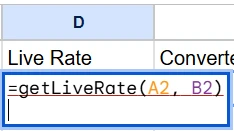
This fetches the live exchange rate between the base and target currencies.
Calculate the Converted Amount Using the Live Rate:
In cell E2, enter the formula:
=C2 * D2
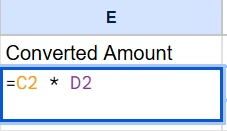
This multiplies the amount by the live rate to get the converted amount.
Fetch the Historical Exchange Rate:
In cell G2, enter the formula:
=getHistoricalRate(A2, B2, TEXT(F2, "YYYY-MM-DD"))
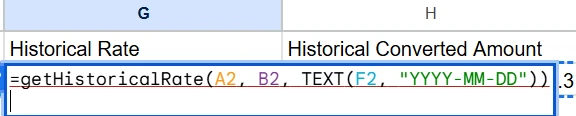
This fetches the historical exchange rate for the specified date.
Calculate the Historical Converted Amount:
In cell H2, enter the formula:
=C2 * G2
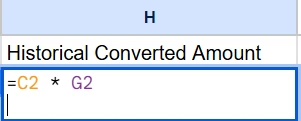
This calculates the converted amount using the historical rate.
Calculate the Rate Difference:
In cell I2, enter the formula:
=D2 - G2
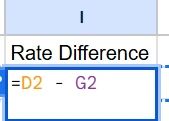
This calculates the difference between the live and historical rates.
Step 5: Test the Functionality
Provide Inputs:
Enter values in Base Currency, Target Currency, Amount, and Historical Date fields.
Verify the Results:
Ensure that the live rate, converted amount, historical rate, historical converted amount, and rate difference are displayed correctly.
Optional Enhancements
Dropdown Menus:
Use data validation to create dropdown menus for Base Currency and Target Currency for easier input selection.
Automate Updates:
Set up triggers in the Apps Script editor to automatically refresh the data at specified intervals.
Conclusion
Integrating a currency API into Google Sheets makes spreadsheets more interactive. It eliminates manual live currency conversions. This innovation increases productivity by reducing update time and minimizing errors. Precise exchange values update as they occur.
Managing overseas transactions becomes easier. Resource planning is more reliable. Financial trends are simpler to analyze. This integration showcases sophisticated data management practices.
You have many options. Built-in functions, APIs like CurrencyFreaks, or third-party services can be used. There is no one-size-fits-all solution. By using the methods described, you stay efficient. Maximize performance and create realistic strategies with ease.
FAQs
Can I Connect a Free Currency API to Google Sheets?
Yes. You can connect it using Apps Script for real-time exchange rates.
Can You Do Currency Conversion on Google Sheets?
Yes. You can use built-in functions or integrate APIs for conversions.
How Do I Add Currency in Google Sheets?
Use the "Format" menu to apply currency formatting or add a conversion formula.
Does Google Have a Currency Converter API?
Google Sheets offers GOOGLEFINANCE for basic currency conversions but no dedicated API.
Sign Up for free at CurrencyFreaks to start accurate currency conversion within your Google Sheets.